
Connect PAT with the application
Connect the new PAT with the application.
Step 1: Obtain Altru URL
- Log in to Altru in a new browser tab.
- Click on "Home".
- Copy the URL from the browser.
Step 2: Validate Altru URL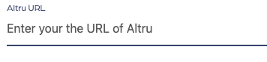
- Log in to the SGS application using a different browser tab.
- Click on "Settings".
- Click on the "Altru" tab.
- Paste the Altru URL into the "Altru URL" field.
- Click on "Validate URL".
Step 3: Save Credentials
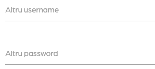
- Enter the username and password (token).
- The username is "sgs-account" or the name assigned to the proxy account.
- The password is the PAT.
- Click on "Save credentials".
- Click on "Test Connection" to verify the credentials are valid.
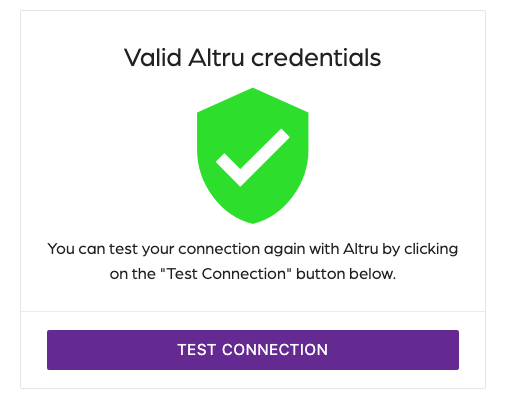
Now view the message "Valid Altru Credentials", indicating that the credentials are valid, and the application is ready to start.
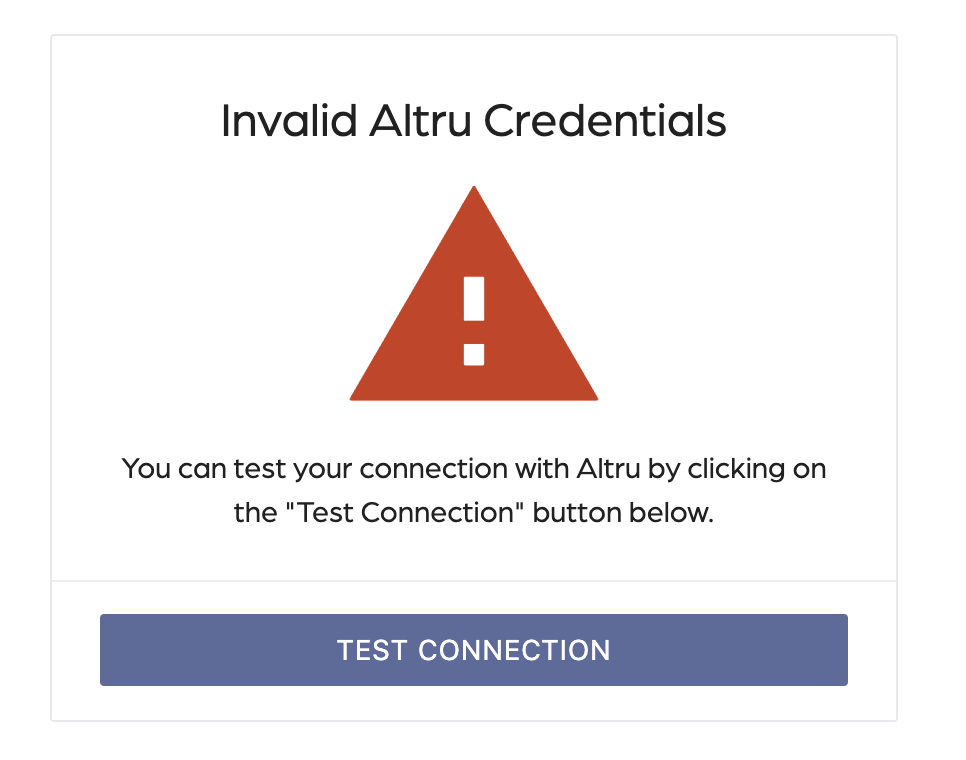
If an error with the "Invalid Altru Credentials" message appears, please verify that all the steps were followed correctly. A typo or an invalid value could cause this message.
To update an account that was previously connected, use the following format to get the values needed.
Altru Domain: https://XXX.blackbaudhosting.com
Altru Root Directory: XXX
Altru Username: ENTER_THE_USERNAME
Altru Password (token): ENTER_THE_PASSWORD
Altru Database: XXX-XXX-XXX-XXX
Altru Instance ID: XXX