
Renew Altru Personal Access Token
Per Altru’s security policy, all proxy users must renew their personal access tokens (PATs) every 12 months. Depending on the initial setup date of the connection between Altru and Social Good Software, tokens may have expired or be approaching expiration.
To renew the proxy token, follow these steps:
Step 1: Locate the PAT page
- Log in to the application.
- Click on “Settings” in the left navigation.
- Click on “Altru” in the top navigation.
Step 2: Log in to Altru
- Log in to Altru with admin permissions.
- Click on “Administration”.
- Click on “Application users”.
- Search for the user “sgs-account” or “sgs”; it could have been modified in previous connections
- Click on the name.
Step 3: Verify the roles assigned
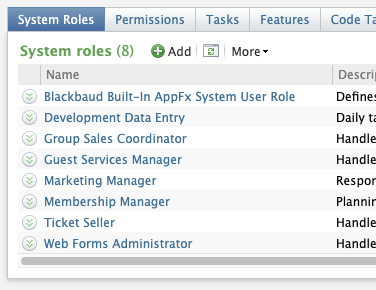
- Click on the “System Roles” tab.
- Verify the roles needed for the account.
Step 4: Remove previous access token (Optional)
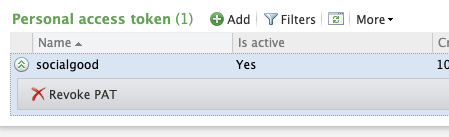
- Click on the “Personal Access Token” tab.
- Locate the “Revoke PAT” option.
- Click on the option to remove it
- Select option “PAT is expired.”
- Click on “Save”
Step 5: Create a new personal access token
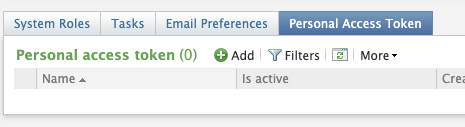
- Click on “Add”.
- Enter the name “socialgood”.
- Check the box for “I have copied the personal access token to a consuming service.”
- Copy the personal token.
- Click on “Save”
Step 6: Update the credentials in the application
- Log in to the SGS application.
- Click on “Settings” in the left navigation.
- Click on “Altru” in the top navigation.
- Enter the recently created personal access token (PAT) into the password box.
- Click on the “Save credentials” button.
Step 7: Test the connection to verify it’s valid
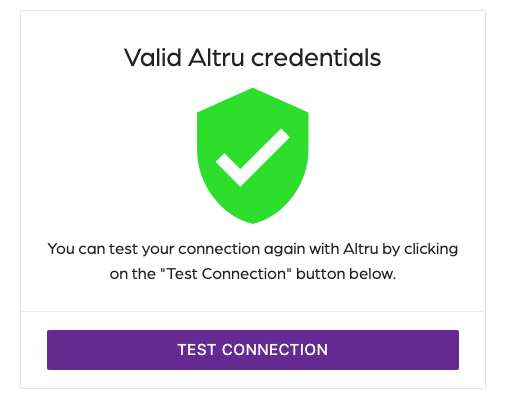
- Click on the "Test Connection" button to verify that the credentials are valid.
If successful, the message "Valid Altru credentials" indicates that the credentials are valid, and the connection is now ready.
Troubleshooting:
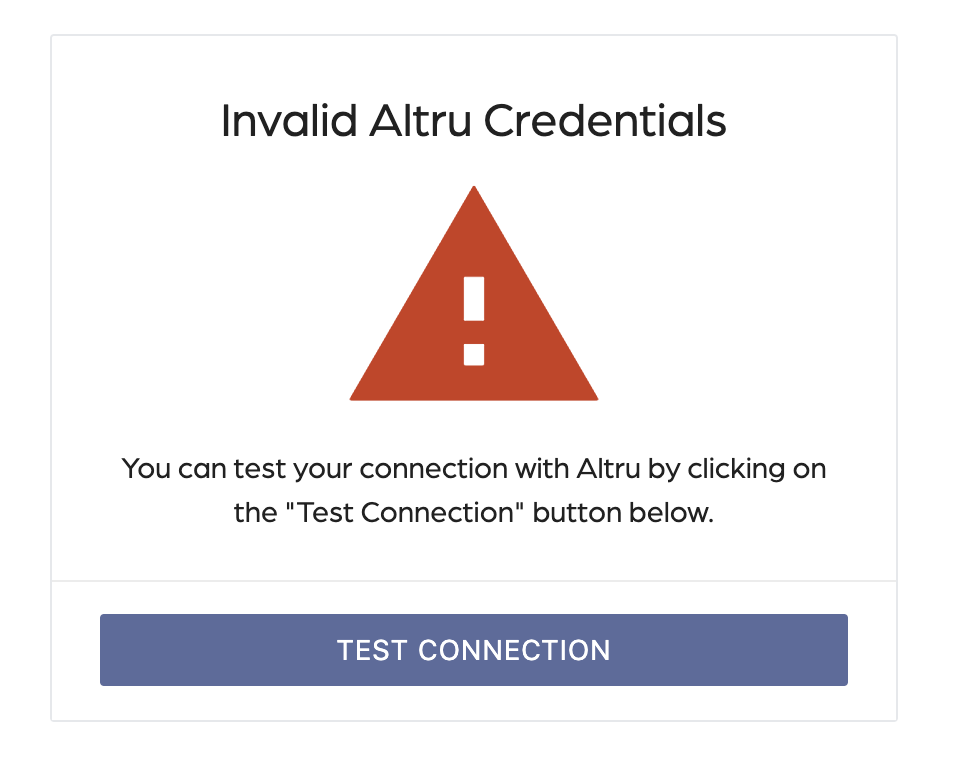
New staff members
If the staff member responsible for the original Altru connection departs the organization, an 'Invalid Altru credentials' message may appear during connection testing. This occurs because the Personal Access Token (PAT) is tied to the specific Altru user account of the creator.
To resolve this issue:
Use an alias account
If the staff member who established the original Altru connection is no longer with the organization, an 'Invalid Altru credentials' message may appear during connection testing. This occurs because the Personal Access Token (PAT) is tied to the original Altru user account.
When Altru shows the message that “PATs can be added only by the App user linked to this proxy user”, it means the previous staff member’s account is still linked to the proxy user.
To resolve this issue:
- Create a PAT with a new proxy user using an alias account
- Connect PAT with application
Membership Cards
If members are unable to access digital membership cards and testing results in a consistent error, the connection between Altru and Social Good Software has typically been severed.
When the connection is inactive, the application cannot verify membership details or generate digital cards, resulting in broken or invalid links for constituents.
To resolve this issue
Ticket Scanners
When ticket scanners display the error message 'You do not have permission to view the directory or page,' it indicates that the devices have lost access to the Social Good Software application or the Altru integration. This typically occurs because the proxy user’s Personal Access Token (PAT) has expired or the connection credentials are no longer valid.
To resolve this issue
After completing these steps, scanners should reconnect and resume normal ticket scanning operations.