
Correct the Mailchimp error about required fields in the Data Bridge
You may have noticed that your Data Bridge has stopped syncing and have seen this error message in the Activity tab:
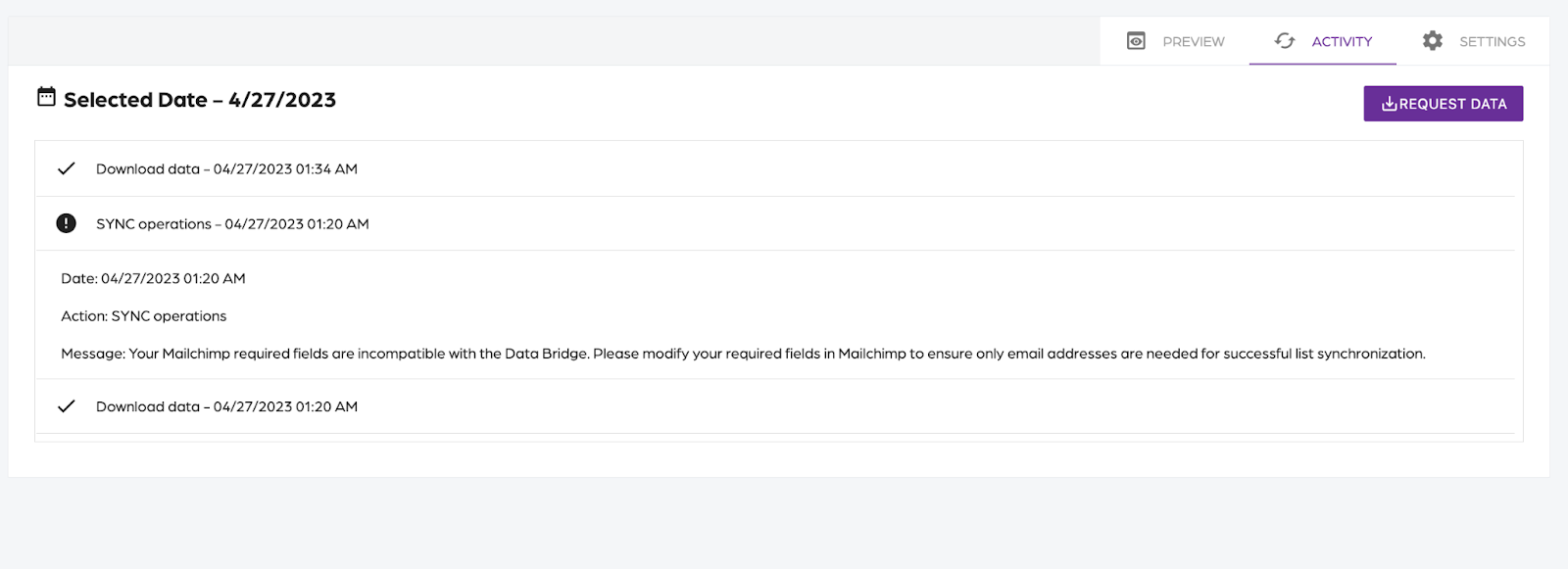
This error indicates that the fields you require in Mailchimp have been updated to include a field we do not support. This could include a variety of text fields, buttons, drop-downs, or other fields. Read more about Mailchimp fields here
Steps to fix the error:
- Navigate to Audience.
- Manage Audience.
- Settings.
- On the Audience Settings page, click Audience fields and merge tags.
- Select the 3 dots icon next to the desired tag.
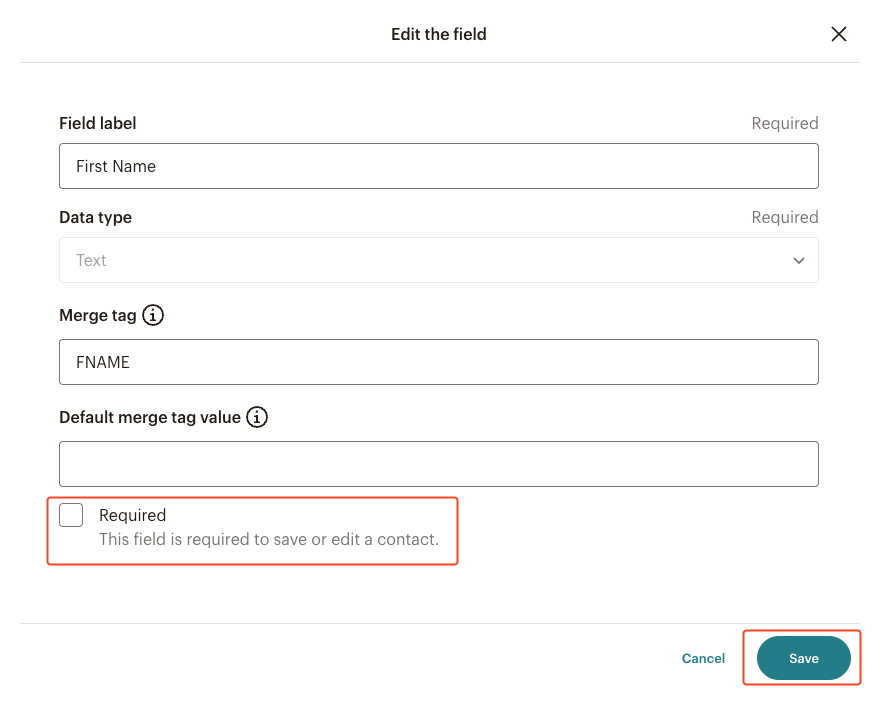
- Check the “Required” box.
- Click on “Save”.
Email address (required by default).
First name.
Last name.
After you have saved your new settings, you should be able to resume your Data Bridge sync with no problems.
In case you are still experiencing issues, please email us at support@socialgoodsoftware.com so we can further look into this.