
Google Sheets Connection
You are now ready to get to the implementation part of the integration. Before you proceed, make sure you have completed the following checklist:
- Account connected with Social Good Software.
- Personal account with Altru with selected roles.
- Account with Google Sheet.
Step 1: Login
- Log in to the application.
- Click on “Data Bridge”.
- Click on “+ Create Data Bridge”.
Step 2: Create a Data Bridge
- Enter the name of Data Bridge.
- Click “Next”.
- Select “Altru data”.
- Add OData link from the previously created query for this specific connection.
- Click on “Next”.
- Click on “Create Data Bridge”.
Step 3: Create a widget
- Click on the widgets tab.
- Click “+ Create Widget”.
- Name the widget.
- Click next.
- Select the Google Sheets type of widget from the dropdown menu.
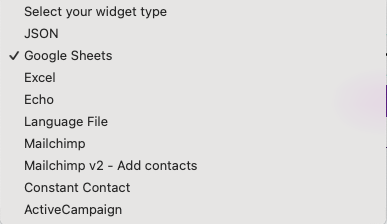
- Click on “Next”.
- Click on “Create widget”.
Step 4: Reviewing widget settings
- Select the Google Sheets widget.
- Click on Settings.
- The “Excel/Google Sheet Link”: use this link to integrate into Google Sheets. When needed, click on Copy Link.
- The “Direct Link”: Use this link if you want a developer or a 3rd party to be able to use the data. When needed, click on Copy Link.
Step 5: Prepare and set up your Google Sheet
- Make a copy of the Google Sheet Template.
Step 6: Guide Sheet
- Copy the direct link from your Data Bridge widget settings and paste it into the Guide sheet
- Copy the username from the widget settings and paste it into the Guide sheet
- Copy the password from the widget settings and paste it into the Guide sheet
Step 7: Generate Report
- In the Query results sheet, click on Download data
- View the generated information in the Query results sheet
Step 6: Configure Settings
- Click on the settings tab.
- Go to the gear icon for each item to select the Merging key, Merged columns, and Hidden columns.
This depends on the size of your list; for example, if your list size is 1,000 contacts, it takes five minutes to complete the sync process.