Features
Designer tab:
Preview the look and feel of the ticket.
Box with arrow icon:

Open the ticket preview in a new window.
Refresh arrow:

Reload the ticket preview.
Floppy disk icon:

Save the design.
Desktop, tablet, & phone icons:

View the ticket design from a desktop, tablet or phone screen.
Page editor:

Add and edit content over the page by hovering over the specific elements. Click on the pencil to edit the content. Click on preview to view changes, and click the floppy drive to save.
Activity tab:
View history of invalid tickets not available to be attached to emails. Emails are not sent if tickets are not valid.
Calendar icon:
Select a date you would like to view the history of invalid tickets on.
Settings tab:
View the ticket settings.
Ticket configuration:
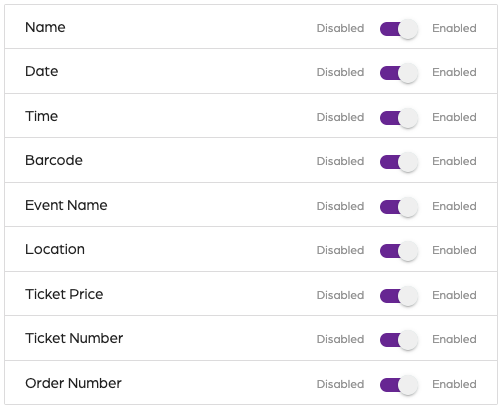
Enable or disable what is shown on the ticket.
Name: Display the constituent's name on a ticket.
Date: Display the date of the event on the ticket.
Time: Display the time of the event on the ticket.
Barcode: Display a scannable barcode on the ticket.
Event Name: Display the name of the event on the ticket.
Location: Display the location on the ticket.
Ticket price: Display the ticket price on the ticket.
Ticket number: Display the ticket number on the ticket.
Order number: Display the order number on the ticket.
Ticket options:
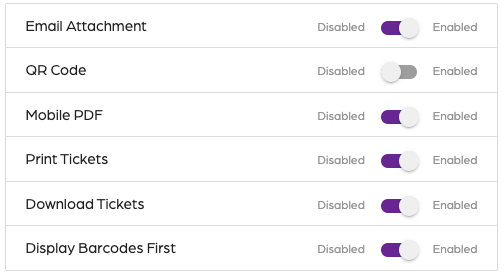
Optional ticket settings that allow the tickets to be attached, downloaded, or printed.
Email attachment: Allow the ticket to be attached in an email.
QR code: Display a QR code inside the ticket design instead of a barcode.
Print tickets: Allow the tickets to be printed.
Download tickets: Allow the tickets to be downloaded.
Display Barcodes first: Display the barcodes on the tickets first.
PDF name:
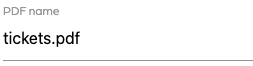
Name of the ticket PDF that customers see when downloading their tickets.
Ticket colors:
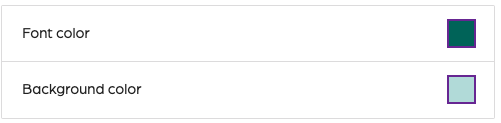
Select a background and font color by choosing an option or pasting a hex code.
Default ticket design:
Yes/No dropdown to select a default ticket design. The default ticket design is used for determining which ticket is used by default if you have more than one ticket design.
Features
6746269f307da42f0b89e572
674628c9c70af9799c5c7834
"\n**Designer tab:**\n\n\n\nPreview the look and feel of the ticket.\n\n**Box with arrow icon:**\n\n\n\nOpen the ticket preview in a new window.\n\n**Refresh arrow:**\n\n\n\nReload the ticket preview.\n\n**Floppy disk icon:**\n\n\n\nSave the design.\n\n**Desktop, tablet, & phone icons:**\n\n\n\nView the ticket design from a desktop, tablet or phone screen.\n\n**Page editor:**\n\n\n\nAdd and edit content over the page by hovering over the specific elements. Click on the pencil to edit the content. Click on preview to view changes, and click the floppy drive to save.\n\n**Activity tab:**\n\n\n\nView history of invalid tickets not available to be attached to emails. Emails are not sent if tickets are not valid.\n\n**Calendar icon:**\n\n\n\nSelect a date you would like to view the history of invalid tickets on.\n\n**Settings tab:**\n\n\n\nView the ticket settings.\n\n**Ticket configuration:**\n\n\n\nEnable or disable what is shown on the ticket.\n\n**Name:** Display the constituent's name on a ticket.\n\n**Date:** Display the date of the event on the ticket.\n\n**Time:** Display the time of the event on the ticket.\n\n**Barcode:** Display a scannable barcode on the ticket.\n\n**Event Name:** Display the name of the event on the ticket.\n\n**Location:** Display the location on the ticket.\n\n**Ticket price:** Display the ticket price on the ticket.\n\n**Ticket number:** Display the ticket number on the ticket.\n\n**Order number:** Display the order number on the ticket.\n\n**Ticket options:**\n\n\n\nOptional ticket settings that allow the tickets to be attached, downloaded, or printed.\n\n**Email attachment:** Allow the ticket to be attached in an email.\n\n**QR code:** Display a QR code inside the ticket design instead of a barcode.\n\n**Print tickets:** Allow the tickets to be printed.\n\n**Download tickets:** Allow the tickets to be downloaded.\n\n**Display Barcodes first:** Display the barcodes on the tickets first.\n\n**PDF name:**\n\n\n\nName of the ticket PDF that customers see when downloading their tickets.\n\n**Ticket colors:**\n\n\n\nSelect a background and font color by choosing an option or pasting a hex code.\n\n**Default ticket design:**\n\nYes/No dropdown to select a default ticket design. The default ticket design is used for determining which ticket is used by default if you have more than one ticket design.\n"
