Overview

In the order overview, you can see the details of the person who created the sales order, the order number, and membership details, if applicable. By expanding the "View more details" section, you can view additional personal details of the sales order, including email, phone, address, membership status, expiration date, order details, method of purchase, and amount paid.
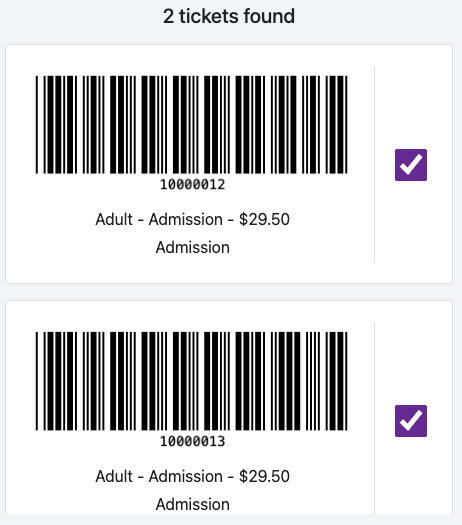
The following section shows the number of tickets for this particular sales order. Details include the ticket number, ticket type, amount paid, program name, and a checkbox to select a ticket. By default, all tickets are selected.

Lastly, the "Scan tickets" button will scan the tickets. Each ticket will be scanned, accompanied by an audio sound and a small vibration on the handheld device. If the tickets are valid, they will disappear from the screen. If they are invalid, they will remain on the screen with the corresponding error message.
If all tickets are valid, you are taken back to the scan screen. If any tickets are invalid, you remain on the ticket overview screen.
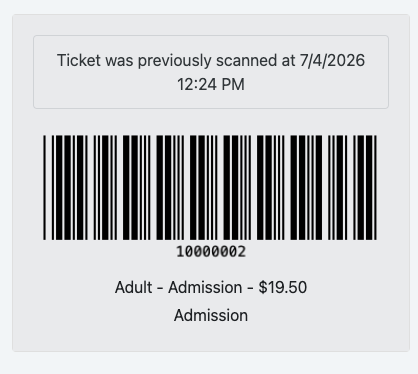
If a ticket in the sales order was previously scanned, it will be marked in gray, along with the scan date. You cannot re-scan the same ticket unless you configure the scanner to allow it to be scanned multiple times. You can find this option in the scanner settings.
Overview
66a7dc55ebb98e6cfc598ec5
66a8235bebb98e6cfc598f56
"\n\n\nIn the order overview, you can see the details of the person who created the sales order, the order number, and membership details, if applicable. By expanding the \"View more details\" section, you can view additional personal details of the sales order, including email, phone, address, membership status, expiration date, order details, method of purchase, and amount paid.\n\n\n\nThe following section shows the number of tickets for this particular sales order. Details include the ticket number, ticket type, amount paid, program name, and a checkbox to select a ticket. By default, all tickets are selected.\n\n\n\nLastly, the \"Scan tickets\" button will scan the tickets. Each ticket will be scanned, accompanied by an audio sound and a small vibration on the handheld device. If the tickets are valid, they will disappear from the screen. If they are invalid, they will remain on the screen with the corresponding error message.\n\nIf all tickets are valid, you are taken back to the scan screen. If any tickets are invalid, you remain on the ticket overview screen.\n\nIf a ticket in the sales order was previously scanned, it will be marked in gray, along with the scan date. You cannot re-scan the same ticket unless you configure the scanner to allow it to be scanned multiple times. You can find this option in the scanner settings.\n\n\n\n"
