Scan
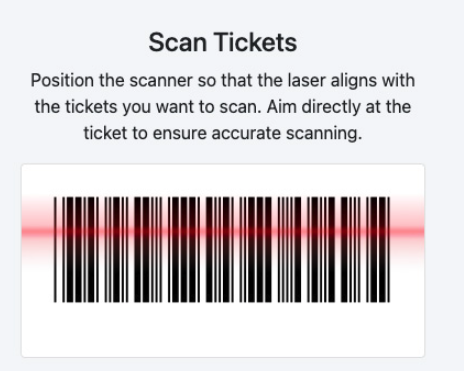
The scan view can be activated by tapping on the scan navigation item or by using a dedicated handheld scanner to scan a ticket from any other section, which will take you to the scan section.
If you are using a dedicated device, you do not need to be in the scan view to scan a barcode. However, if you are using the device’s camera, you must navigate to this tab to activate the camera.
If you are using the device’s camera, it will automatically scan a ticket. The following ticket designs are supported with the scanner.
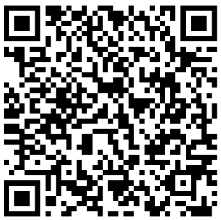
Single QR Code embedded from the Email Designer:
Standard tickets attached through the Email Designer:
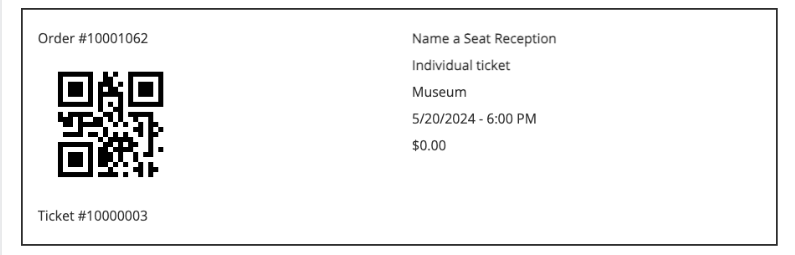
QR Codes attached in the Email Designer:
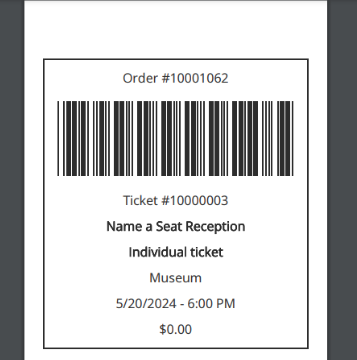
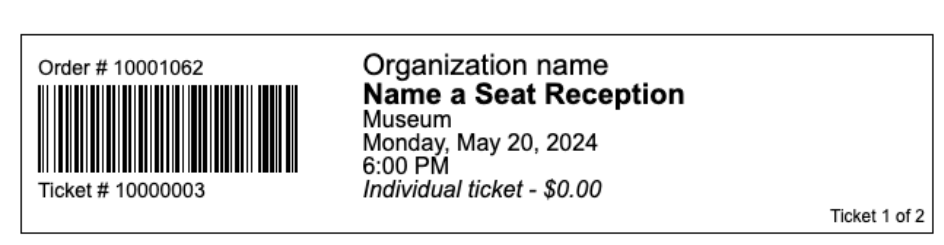
Standard barcodes from Altru on the web or printed:
Once the ticket is scanned and is valid, you are taken to the tickets overview section.
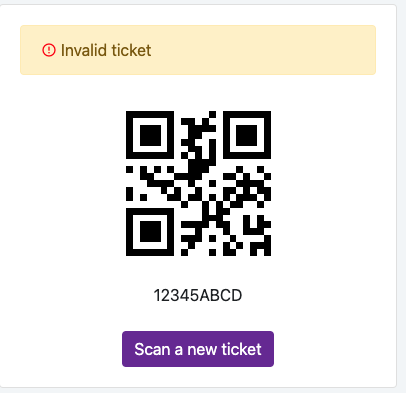
If the ticket is invalid, your device will emit an audio alert and vibrate, and the reason why the ticket is not valid will appear.
You can now click "Scan a new ticket" to return to the scan view and scan another ticket.
Scan
66a7dc55ebb98e6cfc598ec5
66a8235aff87102c192e2812
"\n\n\nThe scan view can be activated by tapping on the scan navigation item or by using a dedicated handheld scanner to scan a ticket from any other section, which will take you to the scan section.\n\nIf you are using a dedicated device, you do not need to be in the scan view to scan a barcode. However, if you are using the device’s camera, you must navigate to this tab to activate the camera.\n\nIf you are using the device’s camera, it will automatically scan a ticket. The following ticket designs are supported with the scanner.\n\n**Single QR Code embedded from the Email Designer:**\n\n\n\n**Standard tickets attached through the Email Designer:**\n\n\n\n**QR Codes attached in the Email Designer:**\n\n\n\n**Standard barcodes from Altru on the web or printed:**\n\n\n\nOnce the ticket is scanned and is valid, you are taken to the tickets overview section.\n\n\n\nIf the ticket is invalid, your device will emit an audio alert and vibrate, and the reason why the ticket is not valid will appear.\n\nYou can now click \"Scan a new ticket\" to return to the scan view and scan another ticket.\n\n"
