Search
If visitors have forgotten their ticket, they can be searched by name, phone number, email, or order number. This allows for quick and easy access to guest information, making it simple to get scanned in without a ticket. You can look up a visitor using one of the following options.
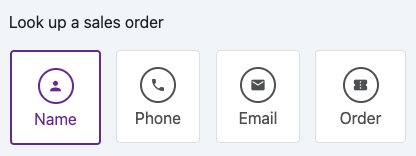
Name:
Look up visitors by their full name, including first and last names. This is a fuzzy search, so if you type in the beginning or end of a name, the results will be filtered based on your input. This is the name entered at the time of purchase.
Phone:
Look up visitors by their phone numbers. This is a fuzzy search, so if you type in the beginning or end of a phone number, the results will be filtered based on your input. This is the phone number entered at the time of purchase.
Email:
Look up visitors by their email address. This is a fuzzy search, so if you type in the beginning or end of an email address, the results will be filtered based on your input. This is the email address entered at the time of purchase.
Order:
Look up visitors by their order number. This is a fuzzy search, so if you type in the beginning or end of an order number, the results will be filtered based on your input. This is the order number provided at the time of purchase.
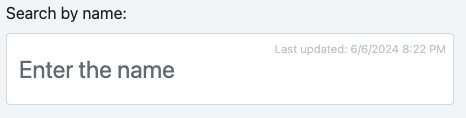
To search for a particular ticket, tap on a search selection and type in the value you seek. The list will be filtered based on your search criteria as you type. Once you have located the sales order, tap on the item to view its details. If the selected order does not yet have tickets attached to it, they will be generated at this time for the sales order, and the user is shown the order overview page.
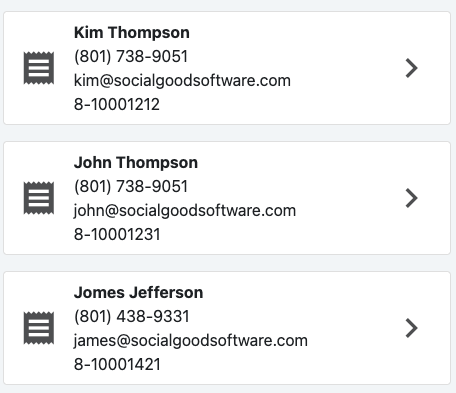
The data comes directly from the OData query connected to this scanner. If you don’t see your data, it means it’s not found in your query, and you might need to modify the restrictions in the query.
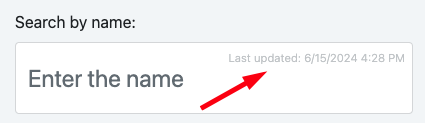
Your data is updated in real-time as you access it. When you tap the search, a scheduled operation runs your query on your behalf. Looking closely at the timestamp in the search field, you can see the last time new data arrived at your scanner.
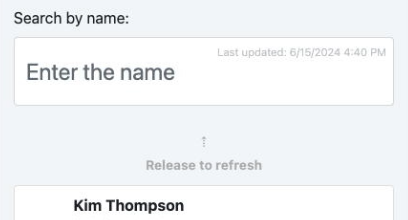
You can manually pull down a card to refresh the data and wait for the query to return the latest results. This can take a few seconds, depending on the size of your query results.
Search
66a7dc55ebb98e6cfc598ec5
66a8235985cc923c86cb1eac
"\nIf visitors have forgotten their ticket, they can be searched by name, phone number, email, or order number. This allows for quick and easy access to guest information, making it simple to get scanned in without a ticket. You can look up a visitor using one of the following options.\n\n\n\n**Name:**\n\nLook up visitors by their full name, including first and last names. This is a fuzzy search, so if you type in the beginning or end of a name, the results will be filtered based on your input. This is the name entered at the time of purchase.\n\n**Phone:**\n\nLook up visitors by their phone numbers. This is a fuzzy search, so if you type in the beginning or end of a phone number, the results will be filtered based on your input. This is the phone number entered at the time of purchase.\n\n**Email:**\n\nLook up visitors by their email address. This is a fuzzy search, so if you type in the beginning or end of an email address, the results will be filtered based on your input. This is the email address entered at the time of purchase.\n\n**Order:**\n\nLook up visitors by their order number. This is a fuzzy search, so if you type in the beginning or end of an order number, the results will be filtered based on your input. This is the order number provided at the time of purchase.\n\n\n\nTo search for a particular ticket, tap on a search selection and type in the value you seek. The list will be filtered based on your search criteria as you type. Once you have located the sales order, tap on the item to view its details. If the selected order does not yet have tickets attached to it, they will be generated at this time for the sales order, and the user is shown the order overview page.\n\n\n\nThe data comes directly from the OData query connected to this scanner. If you don’t see your data, it means it’s not found in your query, and you might need to modify the restrictions in the query.\n\n\n\nYour data is updated in real-time as you access it. When you tap the search, a scheduled operation runs your query on your behalf. Looking closely at the timestamp in the search field, you can see the last time new data arrived at your scanner.\n\n\n\nYou can manually pull down a card to refresh the data and wait for the query to return the latest results. This can take a few seconds, depending on the size of your query results.\n\n"
