
Color settings
The Ticket Scanner user interface uses two colors: a primary and a secondary color. These colors contribute to the overall look and feel of the application. To change the color of the Scanner, follow the steps below.
Step 1:
- Log in to your Account.
- Click on “Ticket Scanner”.
- Click on your scanner.
Step 2:
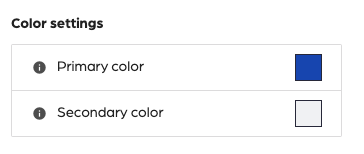
- Click on ”Settings” on the top right.
- Locate the “Color settings” section.
Step 3:
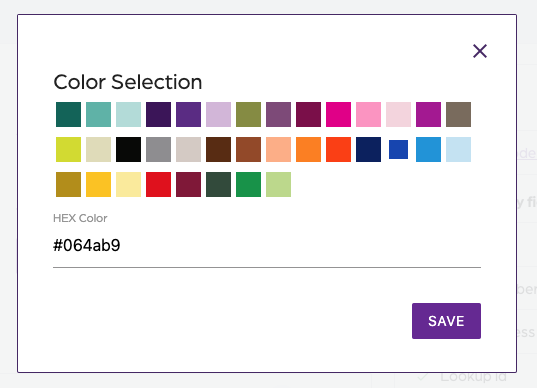
- Click on the gear for the color box to select your color.
- A dialog box will appear.
- Select the color or type in the hex value.
- Click on “Save”.
- Repeat this process for the next color.
Color settings
66a7dc55ebb98e6cfc598ec5
66a82356ebb98e6cfc598f54
"\nThe Ticket Scanner user interface uses two colors: a primary and a secondary color. These colors contribute to the overall look and feel of the application. To change the color of the Scanner, follow the steps below.\n\n**Step 1:**\n\n- Log in to your [Account](https://app.socialgoodsoftware.com/dashboard).\n- Click on “[Ticket Scanner](https://app.socialgoodsoftware.com/scanners)”.\n- Click on your scanner.\n\n**Step 2:**\n\n\n\n- Click on ”Settings” on the top right.\n- Locate the “Color settings” section.\n\n**Step 3:**\n\n\n\n- Click on the gear for the color box to select your color.\n- A dialog box will appear.\n- Select the color or type in the hex value.\n- Click on “Save”.\n- Repeat this process for the next color.\n"