
How to review/resend your relative to date emails
Depending on the relative to date days that are set up, please do an estimation of the amount of remaining days that you will need to change.
Step 1: Open the email settings
Step 2: Disable the “Start sending emails?” setting

Step 3: Update the “days” setting and save.
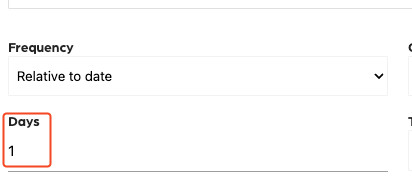
Step 3: Go to the “Preview” tab to review the possible emails.
- Once it loads, click “Select specific date”.
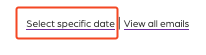
- Select the date you estimated the email to be sent out.
- Hover over the send icon with the little clock.
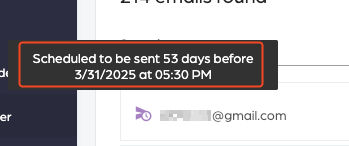
- This box will show you the information of when the email will be sent out.
Step 5: Enable the “Start sending emails?” setting

Step 6: Once the email has been sent, revert the initial days request
Additional Email Designer support articles can be found at our Knowledge base.