
Calendar links not working
If your calendar links are not working as expected, especially when clicking on links, it’s often due to one of the following issues: The web form is not published, the wrong calendar type is selected for the program, or the wrong link was cached for a non published webform.
Step 1: Enable events for webforms
- Log in to Altru.
- Click “Web”.
- Click on “Manage program forms”.
- Find your event.
- Click down for your event and “Enable online sales”.
Step 2: Open the settings

- Select the Calendar.
- Click on the “Settings”.
- Click on the gear icon in the “Calendar type” option.
Step 3: Select your calendar type
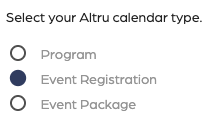
- Depending on the event types.
- Select the proper calendar type.
- Click on “Save”.
Step 4: Clearing cache

- Select the Calendar.
- Click on the “Settings” tab.
- Click on the “Orange circle icon”.
Click on “Clear cache”.
Calendar links not working
67452223faffbb5b3516494b
683c3521013f8c48a8d2cfb8
"\nIf your calendar links are not working as expected, especially when clicking on links, it’s often due to one of the following issues: The web form is not published, the wrong calendar type is selected for the program, or the wrong link was cached for a non published webform.\n\n**Step 1: Enable events for webforms**\n\n- Log in to Altru.\n- Click “Web”.\n- Click on “Manage program forms”.\n- Find your event.\n- Click down for your event and “Enable online sales”.\n\nT> Additional details from Blackbaud to publish events, [Event Registration Forms](https://webfiles-sc1.blackbaud.com/files/support/helpfiles/altru/help/content/WEBEventForms.html).\n\n**Step 2: Open the settings**\n\n\n\n- Select the Calendar.\n- Click on the “Settings”.\n- Click on the gear icon in the “Calendar type” option.\n\n**Step 3: Select your calendar type**\n\n\n\n- Depending on the event types.\n- Select the proper calendar type.\n- Click on “Save”.\n\n**Step 4: Clearing cache**\n\n\n\n- Select the Calendar.\n- Click on the “Settings” tab.\n- Click on the “Orange circle icon”.\n\nClick on “Clear cache”.\n\n"