
Clear the cache from a calendar
When creating events in Altru, make sure to publish your events and set the on-sale date correctly. If your events are not published, then the non-published link will get cached.
- Clear the cache to get back to a working link once you have published the event.
- If you clear the cache and your event is still not published, you will continue to experience the same issue.
- If your event is published, then the link will get cached, so the next person who clicks on the link will link to it directly in under one second.
- The link will automatically expire in 7 days from the cache, and we will request a new one from Altru after 7 days.
Why do we do this?
- Requesting the link from Altru incurs a time and computing cost every time we ask for it.
- Saves time for the user.
- The initial user to click on the link experiences a delay of 3–10 seconds.
- Subsequent users clicking on the link can access it within one second.
Step 1: Select your calendar
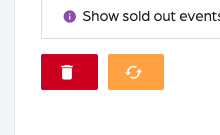
- Click on “Calendar Builder”.
- Select your calendar.
- Click the orange icon on the bottom left.
- Click on “Clear cache”.
Step 2: Save
- Verify your Calendar is properly linking to your web form links.
- Click on “Save settings”.
Clear the cache from a calendar
67452223faffbb5b3516494b
6745d5b600e65011afed62c9
"\nWhen creating events in Altru, make sure to publish your events and set the on-sale date correctly. If your events are not published, then the non-published link will get cached.\n\n- Clear the cache to get back to a working link once you have published the event.\n- If you clear the cache and your event is still not published, you will continue to experience the same issue.\n- If your event is published, then the link will get cached, so the next person who clicks on the link will link to it directly in under one second.\n- The link will automatically expire in 7 days from the cache, and we will request a new one from Altru after 7 days.\n\nWhy do we do this?\n\n- Requesting the link from Altru incurs a time and computing cost every time we ask for it.\n- Saves time for the user.\n- The initial user to click on the link experiences a delay of 3–10 seconds.\n- Subsequent users clicking on the link can access it within one second.\n\n**Step 1: Select your calendar**\n\n\n\n- Click on “Calendar Builder”.\n- Select your calendar.\n- Click the orange icon on the bottom left.\n- Click on “Clear cache”.\n\n**Step 2: Save**\n\n- Verify your Calendar is properly linking to your web form links.\n- Click on “Save settings”.\n\n"