
Adding additional programs to the calendar
Step 1: Settings
- Click on “Calendar Builder”.
- Select your calendar.
- Click on “Settings”.
- Click on the query.
Step 2: Edit query
- Click on “Edit definition”.
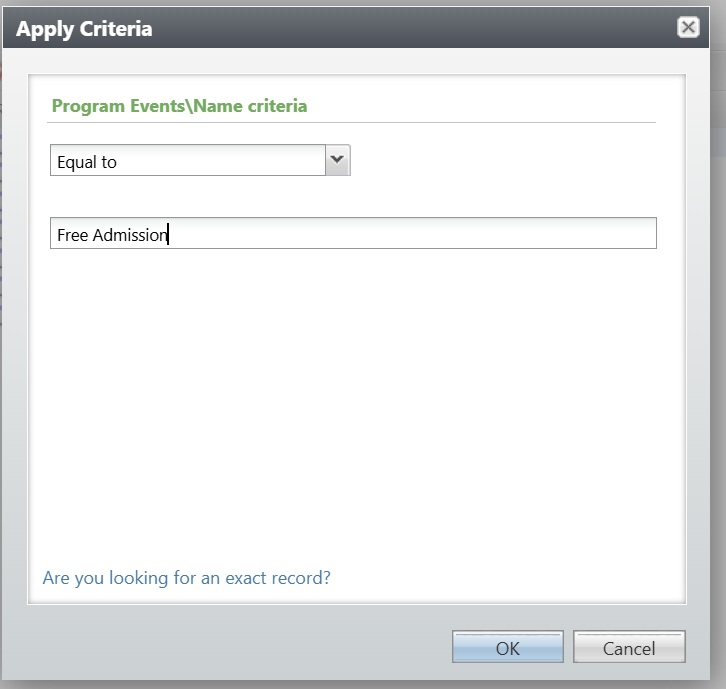
- Click on “Program Events”.
- Click on “Name”.
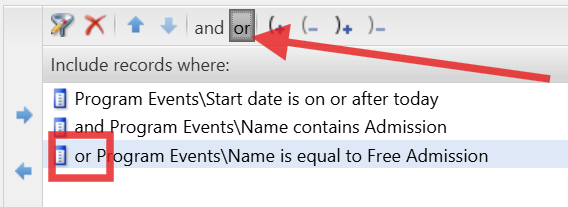
- Add the new program name to the query.
- Add the “Or” condition in front of the new program name.
- Click on “Preview results” to make sure the new event shows up.
- Click on “Save and close”.
Step 5: Sync activity
- Click on “Sync Activity”.
- Click on “Request data”.
- Click on “Preview” to see changes.
Adding additional programs to the calendar
67452223faffbb5b3516494b
6745d5b48c083456b657dd03
"\n**Step 1: Settings**\n\n- Click on “Calendar Builder”.\n- Select your calendar.\n- Click on “Settings”.\n- Click on the query.\n\n**Step 2: Edit query**\n\n\n\n\n\n- Click on “Edit definition”.\n- Click on “Program Events”.\n- Click on “Name”.\n- Add the new program name to the query.\n- Add the “Or” condition in front of the new program name.\n- Click on “Preview results” to make sure the new event shows up.\n- Click on “Save and close”.\n\n**Step 5: Sync activity**\n\n- Click on “Sync Activity”.\n- Click on “Request data”.\n- Click on “Preview” to see changes.\n\n"