Calendar settings
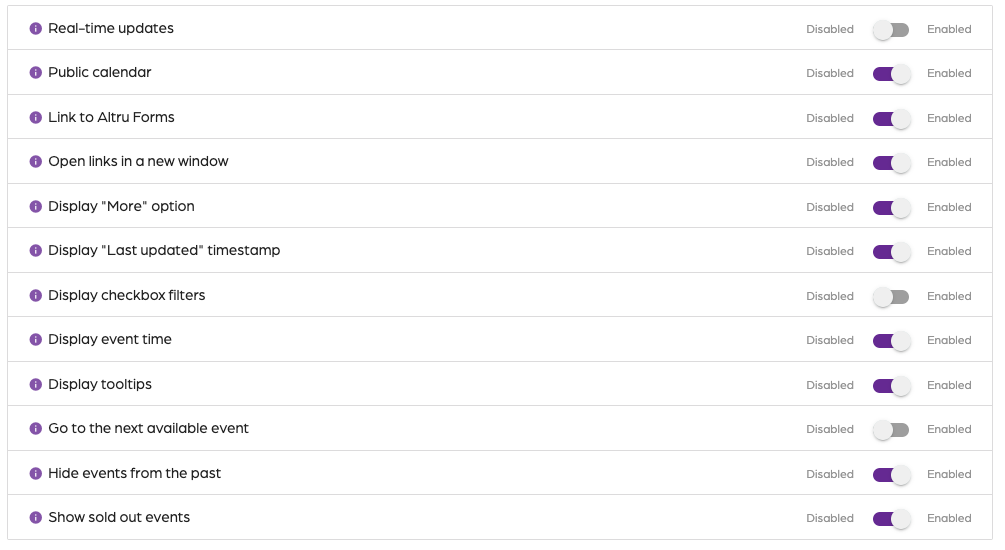
Real-time updates:
Automatically update the calendar based on your query in real-time.
Public Calendar:�The calendar is available to anyone on the internet who knows the link.
Link to Altru Forms:
Link the events to the Altru web forms.
Open links in a new window:
Each link is opened in a new window.
Display "More" option:
When events have a large description, an additional “More” option is displayed.
Display "Last updated" timestamp:
Show the date and time of the last update.
Display checkbox filters:
Checkbox filters for groups of events.
Display event time:
The event time is shown.
Display tooltips:
Additional information is in a tooltip when you hover over an event.
Go to the next available event:
Moves the calendar to the next available event based on your query. For example, if your events happen in December, but it’s July, the calendar is moved to December by skipping empty months.
Hide events from the past:
Events that lapse after the current time are automatically removed from the calendar. For example, if it’s 12:00 PM, events from 9:00 AM to 11:30 PM will not be shown.
Show sold-out events:
If an event is sold out, it is shown in the calendar; otherwise, it is hidden.
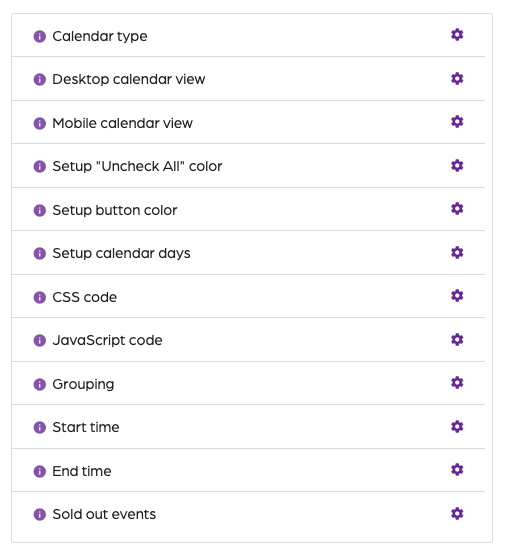
Calendar type:
- Program: An event program in Altru.
- Event Registration: An event registration in Altru.
- Event Package: An event package in Altru
tips_and_updates
If your calendar uses a mix and match of events, the one you select will be used as the default lookup, and then others will be used to attempt to generate the link for the event in Altru.
Desktop calendar view:
The type of calendar shown on desktop devices.
- Date selection: Date range selector for calendar
- Monthly: One month shown at a time.
- Weekly: One week at a time.
- Daily: Daily events are shown by day.
- List: A list of events by day.
Mobile calendar view:
The type of calendar shown on mobile devices.
- Date selection: Date range selector for calendar
- Monthly: One month shown at a time.
- Weekly: One week at a time.
- Daily: Daily events are shown by day.
- List: A list of events by day.
Set up "Uncheck All" color:
Enter a hex value for the color in the checkbox filters.
Set up button color:
Enter a hex value for the color of the buttons in the calendar.
Set up calendar days:
Select the days you want to display in the calendar.
- Monday
- Tuesday
- Wednesday
- Thursday
- Friday
- Saturday
- Sunday
CSS code:
Customize the look and feel of your calendars using CSS code.
JavaScript code:
Customize the look and feel of your calendars using a Javascript code.
Grouping:
Group events together with a similar name by using a custom separator.
Start time:
The first time slot will be displayed for each day.
End time:
The last time slot that will be displayed for each day.
Sold out events:
Configure the format of how the sold-out events will be displayed.
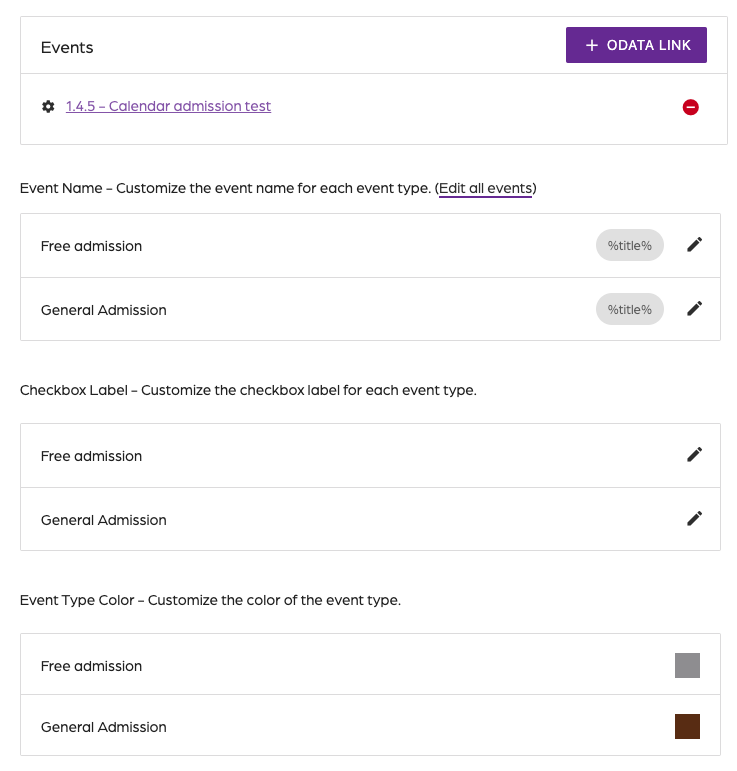
Events
Event Name
Edit how each event name will be displayed in the calendar. Include the following variables as preferred:
- %title% - the program/event name
- %description% - the description of the event
- %details% - additional details or notes of the event
- %location% - the venue for the event
- %created%
- %leader%
- %group%
- %date% - the date of the event
- %start% - the start time of the event
- %end% - the end time of the event
- %capacity% - remaining slots left for the event
- %availability% - remaining slots left for the event
For multiple events: To use the same format across multiple events, click on “Edit all events.”
Checkbox Label
Customize how each checkbox is labeled to filter events
Event Type Color
Select a unique color for each event
Calendar settings
67452223faffbb5b3516494b
6745d5b31f09b9036063e058
"\n\n\n**Real-time updates:**\n\nAutomatically update the calendar based on your query in real-time.\n\n**Public Calendar:**\u000bThe calendar is available to anyone on the internet who knows the link.\n\n**Link to Altru Forms:**\n\nLink the events to the Altru web forms.\n\n**Open links in a new window:**\n\nEach link is opened in a new window.\n\n**Display \"More\" option:**\n\nWhen events have a large description, an additional “More” option is displayed.\n\n**Display \"Last updated\" timestamp:**\n\nShow the date and time of the last update.\n\n**Display checkbox filters:**\n\nCheckbox filters for groups of events.\n\n**Display event time:**\n\nThe event time is shown.\n\n**Display tooltips:**\n\nAdditional information is in a tooltip when you hover over an event.\n\n**Go to the next available event:**\n\nMoves the calendar to the next available event based on your query. For example, if your events happen in December, but it’s July, the calendar is moved to December by skipping empty months.\n\n**Hide events from the past:**\n\nEvents that lapse after the current time are automatically removed from the calendar. For example, if it’s 12:00 PM, events from 9:00 AM to 11:30 PM will not be shown.\n\n**Show sold-out events:**\n\nIf an event is sold out, it is shown in the calendar; otherwise, it is hidden.\n\n\n\n**Calendar type:**\n\n- **Program**: An event program in Altru.\n- **Event Registration:** An event registration in Altru.\n- **Event Package:** An event package in Altru\n\nT> If your calendar uses a mix and match of events, the one you select will be used as the default lookup, and then others will be used to attempt to generate the link for the event in Altru.\n\n**Desktop calendar view:**\n\nThe type of calendar shown on desktop devices.\n\n- Date selection: Date range selector for calendar\n- Monthly: One month shown at a time.\n- Weekly: One week at a time.\n- Daily: Daily events are shown by day.\n- List: A list of events by day.\n\n**Mobile calendar view:**\n\nThe type of calendar shown on mobile devices.\n\n- Date selection: Date range selector for calendar\n- Monthly: One month shown at a time.\n- Weekly: One week at a time.\n- Daily: Daily events are shown by day.\n- List: A list of events by day.\n\n**Set up \"Uncheck All\" color:**\n\nEnter a hex value for the color in the checkbox filters.\n\n**Set up button color:**\n\nEnter a hex value for the color of the buttons in the calendar.\n\n**Set up calendar days:**\n\nSelect the days you want to display in the calendar.\n\n- Monday\n- Tuesday\n- Wednesday\n- Thursday\n- Friday\n- Saturday\n- Sunday\n\n**CSS code:**\n\nCustomize the look and feel of your calendars using CSS code.\n\n**JavaScript code:**\n\nCustomize the look and feel of your calendars using a Javascript code.\n\n**Grouping:**\n\nGroup events together with a similar name by using a custom separator.\n\n**Start time:**\n\nThe first time slot will be displayed for each day.\n\n**End time:**\n\nThe last time slot that will be displayed for each day.\n\n**Sold out events:**\n\nConfigure the format of how the sold-out events will be displayed.\n\n\n\n**Events**\n\n**Event Name**\n\nEdit how each event name will be displayed in the calendar. Include the following variables as preferred:\n\n- %title% - the program/event name\n- %description% - the description of the event\n- %details% - additional details or notes of the event\n- %location% - the venue for the event\n- %created%\n- %leader%\n- %group%\n- %date% - the date of the event\n- %start% - the start time of the event\n- %end% - the end time of the event\n- %capacity% - remaining slots left for the event\n- %availability% - remaining slots left for the event\n\nFor multiple events: To use the same format across multiple events, click on “Edit all events.”\n\n**Checkbox Label**\n\nCustomize how each checkbox is labeled to filter events\n\n**Event Type Color**\n\nSelect a unique color for each event\n\n"
