
Videos
- How to add content to the Email Designer from Word Document
- How to create a membership note type
- How to disable eTicket emails in Altru
- Auto disable emails when queries change in Altru
- How to create reservation note types in Altru
- Altru disable acknowledgment emails
- How to add the eTicket link to the default acknowledgment email in Altru
- How to disable emails globally
- Custom note types in Altru
- Adding content from Word to Email Designer
- Social media icons
- Add text to your email
- Adjust line height
- Create an email template
- How to create an email template
- How to handle the delivery of emails, bounced emails, and complaints
- How to insert eTicket link to the email
- How to prepare to write an email
- How to schedule the email to go live
- How to send the email to the same recipient
- How to upload an image
- eTicket email template for Altru
- Reminder email template for Altru
- Post-visit email template for Altru
- eTicket sending and cache process
- How the email sending frequency settings work
- How to bypass single email limit per email type
- How to create a post-visit survey email with Altru
- How to create an automated email from start to end - Slide deck
- How to enable email automation
- How to send test emails
- How to write a timed ticket email with Google Docs
- Types of emails for eTickets
HEADING_2 How to review/resend your relative to date emails
Depending on the relative to date days that are set up, please do an estimation of the amount of remaining days that you will need to change.
Step 1: Open the email settings
Step 2: Disable the “Start sending emails?” setting

Step 3: Update the “days” setting and save.
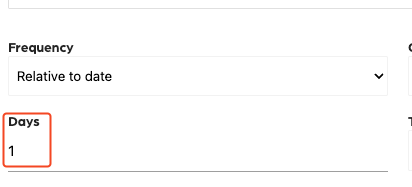
Step 4: Go to the “Preview” tab to review the possible emails.
- Once it loads, click “Select specific date”.
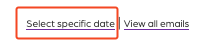
- Select the date you estimated the email to be sent out.
- Hover over the send icon with the little clock.
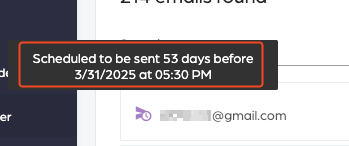
- This box will show you the information of when the email will be sent out.
Step 5: Enable the “Start sending emails?” setting
Enable email
- Open your email in Email Designer.
- Click on “Settings”.
- Enable the “Start sending emails?” option.
- Click on “Save settings”.

Step 6: Once the email has been sent, revert the initial days requested.