
Add text to your email
Step 1: Add text
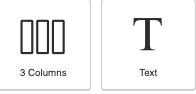
- Click on “Designer”.
- Drag the “Text” box into the email.
- Double-click the box to add text.
Step 2: Merge fields
- Drag the “Text” box for each paragraph.
- Add merge fields from the left column.
Step 3: Edit
- Select the box and click the trash icon to delete text.
Step 4: Save
- Click on the save icon.
Additional Email Designer support articles can be found at our Knowledge base.